
Features
Everything, and how it works
Each feature below with the keys that drive it. Keys are shown for macOS; on Linux and Windows Cmd is usually Ctrl and Option is Alt. Most keys can be changed.
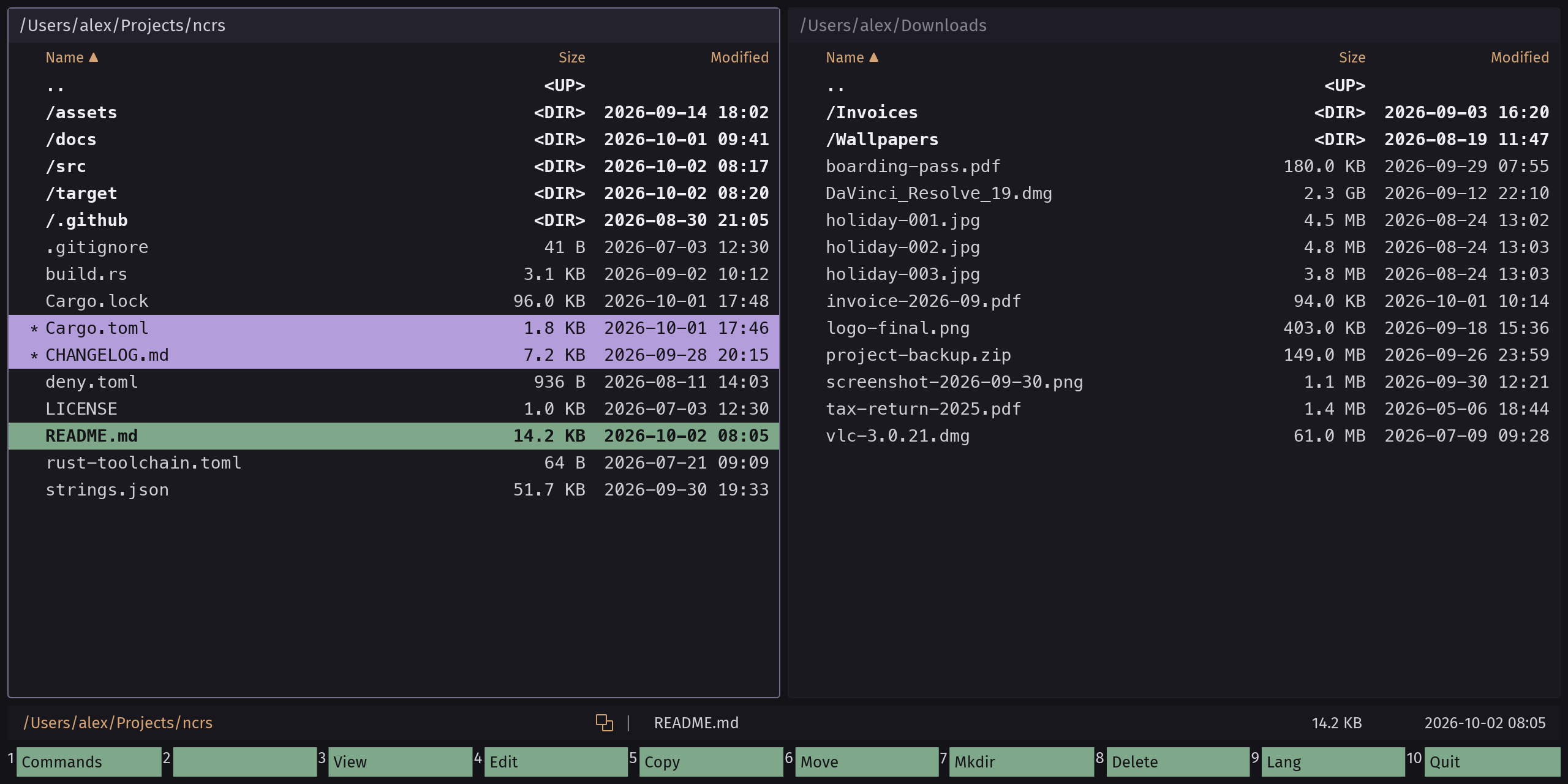
Two panels, tag and act
The left and right panel each show a folder. An action works on the tagged rows, or on the row under the cursor when nothing is tagged.
How it works
- Move with ↑ ↓, or type the first letters of a name to jump there.
- Tag rows with Space; * tags everything.
- F5 copies to the other panel, F6 moves, F7 makes a folder, F8 moves to the trash.
- F3 views a file, F4 opens it in your editor.
Drives and favourite folders
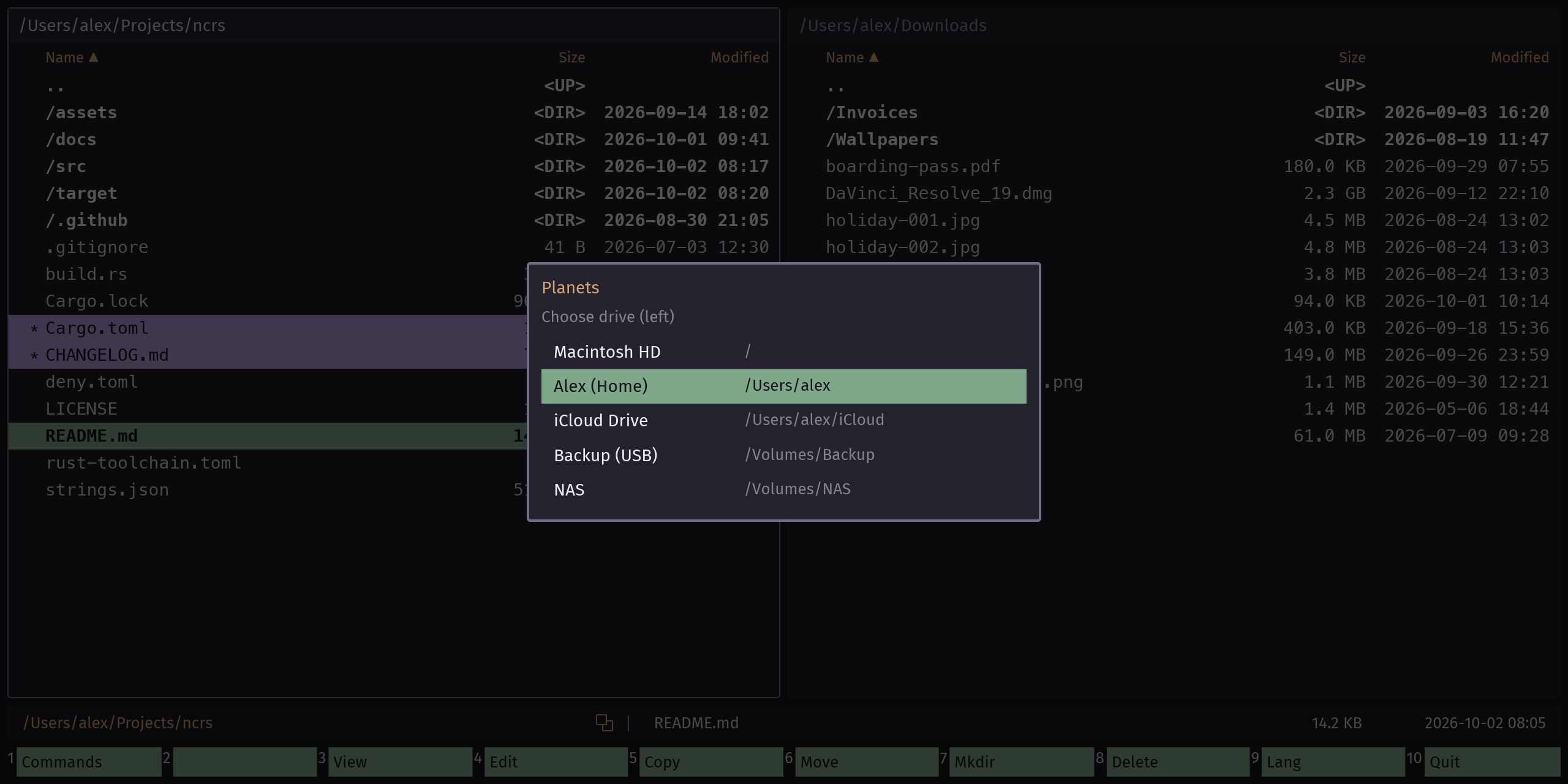
The same places as the Finder sidebar: the system disk, home, iCloud Drive, Google Drive, OneDrive, Dropbox, mounted volumes or drive letters, saved servers and your favourites.
How it works
- Option F1 opens the menu for the left panel, Option F2 for the right.
- Cmd D adds the current folder to the favourites.
- ⌫ in the menu removes a favourite. One whose folder is gone stays, dimmed.
Right-click, or don't
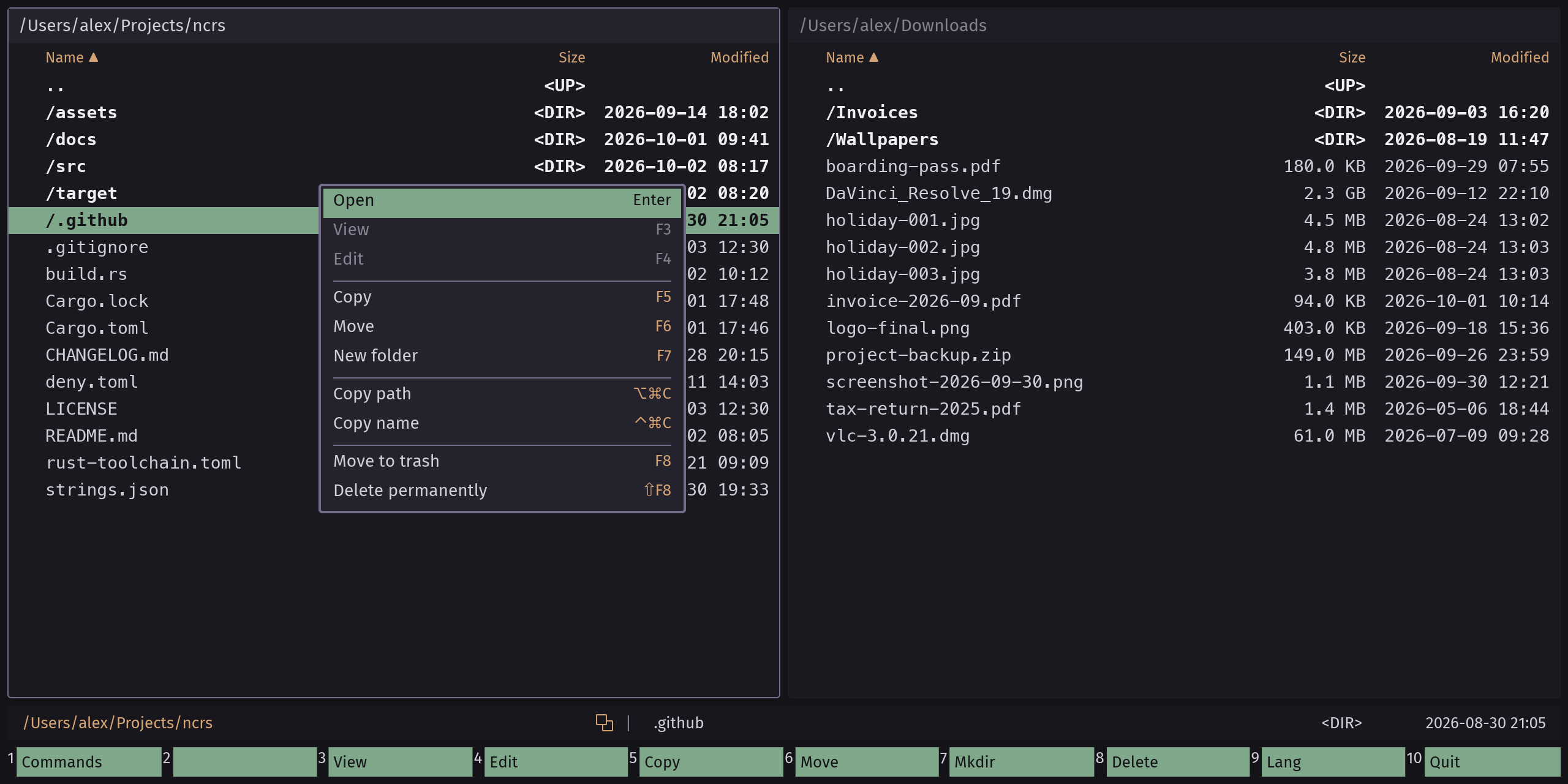
Every action for the selection in one menu, grouped and with its key beside it, so the mouse teaches you the keyboard.
How it works
- Right-click a row, or Ctrl-click on a Mac.
- From the keyboard: Shift F10, or tap Option on its own.
Search names and contents
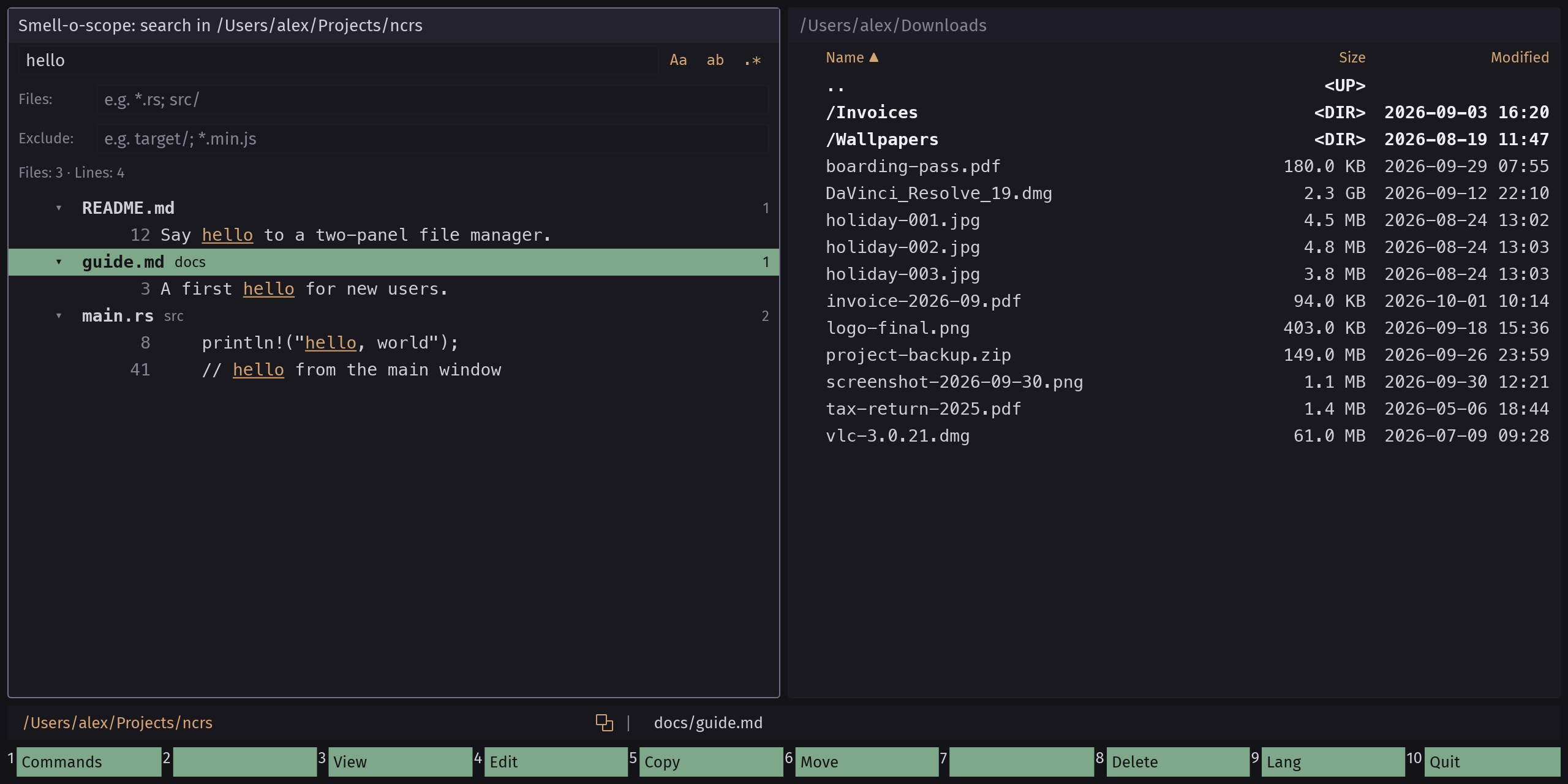
The search takes the place of the active panel and looks below its folder, like VS Code does. Results appear as you type.
How it works
- Cmd Shift F or Option F7 opens it.
- Switch on case, whole words or regex: Option C Option W Option R.
- Narrow with
Files: *.rsandExclude: target/. - Enter on a line opens your editor right there; Space tags results for F5 F6 F8.
Jump to any file
Type a few letters of a path and the best matches come first, up to 250,000 files below the active folder.
How it works
- Cmd P opens the box over the panels.
- Type letters in order:
cfgrsfindssrc/config.rs. - Enter opens the folder with the cursor on the file.
Every command, searchable
You don't need to learn the keys first. The command list finds any action by name and shows its key.
How it works
- F1 opens the list; type to filter.
- Enter runs the command on the selection.
- Cmd K opens the shortcuts dialog to change any key.
Delete, then change your mind
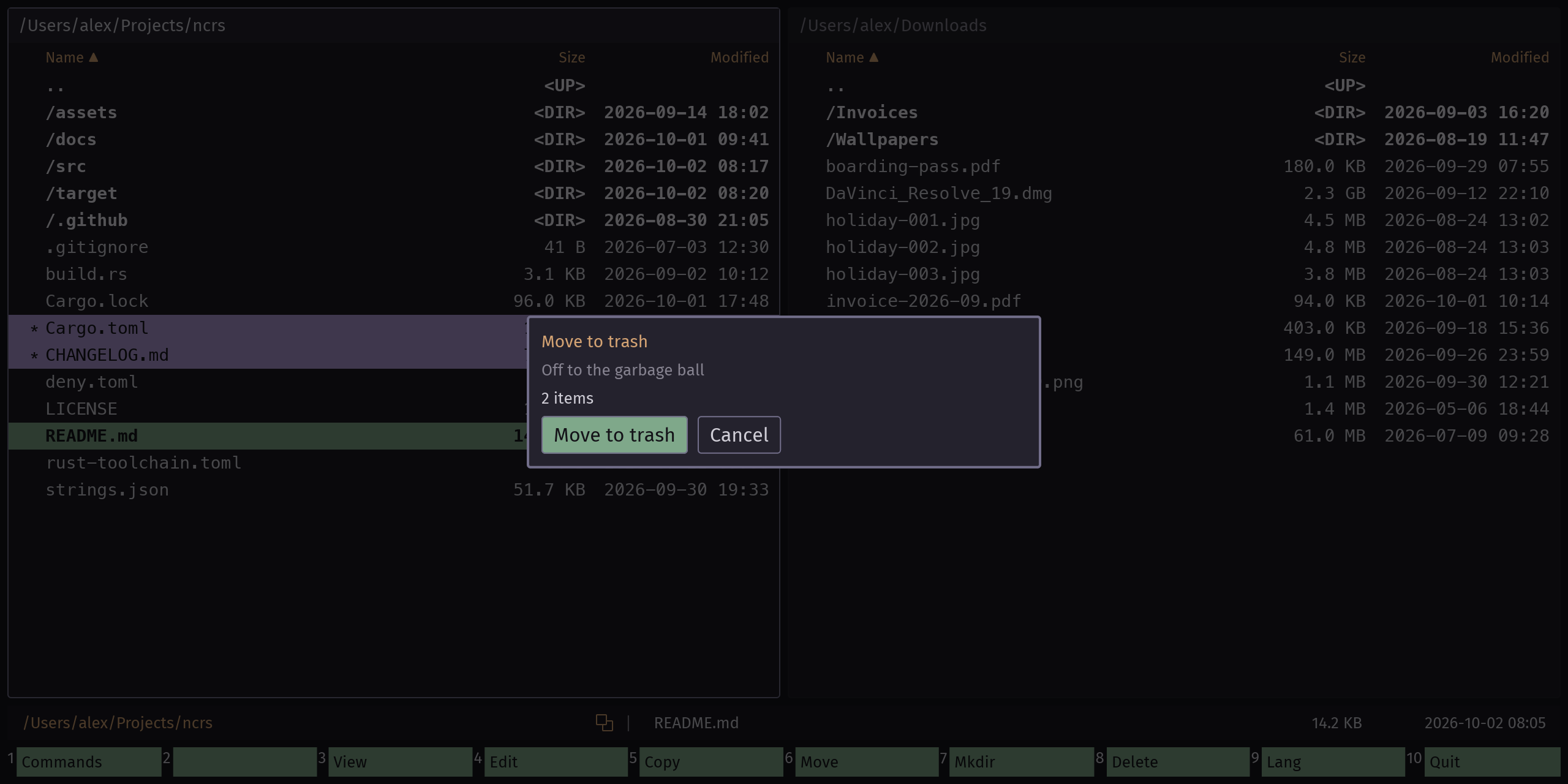
Deleting moves to the system trash. ncrs remembers what it moved, so it can put it back where it was.
How it works
- F8 asks, then moves the selection to the trash.
- Cmd Z puts back what the last F8 moved.
- The trash view (from F1 or the drive menu) restores older items, recreating missing folders.
Archives open like folders
zip, tar, tar.gz, tar.zst and 7z. A change is written to a temporary copy first, so the original is only replaced when everything worked.
How it works
- Enter on an archive opens it.
- F5 copies out of it, or into it to add files.
- Option F5 packs the selection into a new archive in the other panel.
SFTP servers in a panel
A server opens like any folder. Browse, view and copy in both directions. ncrs checks the host key before it sends your password. Login is by password for now.
How it works
- Type
sftp://user@host/pathinto the path field, or pick a saved server in the drive menu. - The first time, confirm the server's fingerprint.
- Tick "Remember password" to keep it in the system keychain, never in a file.
Trust nas.local?
First connection. Compare the fingerprint with the one your server shows.
Works with the rest of your desktop
- Drop files from the Finder or Explorer onto a panel to copy them in.
- Drag rows to the other panel to copy; hold Cmd to move (Shift on Linux and Windows).
- Cmd V pastes copied files, or saves a copied picture as PNG.
Runs from a USB stick
Put a data folder next to the program and settings stay with it. On Windows there is a ready-made portable ZIP.
Make it look like your editor
Pick a preset or load any VS Code color theme. Single colors can still be overridden.
How it works
- Choose a color scheme in the settings.
- Or point ncrs at a VS Code theme file, or fetch one from Open VSX by name.
Ready to try it?
Free for macOS, Linux and Windows.